
For common PC slowdown causes, software cleanup is usually the first sensible step because it is lower cost, reversible, and often fixes startup drag, background activity, storage clutter, and unwanted software. Hardware upgrades make more sense when the machine is clean but still lacks enough RAM, solid-state storage, graphics capacity, or CPU headroom for the work you expect it to handle.
A useful decision starts with evidence, not frustration. Microsoft’s own performance guidance points readers toward storage space, startup apps, malware checks, and updates before assuming a computer is simply too old; that makes cleanup the safer first pass for most home and office users. See Microsoft’s guidance on improving Windows performance before buying parts.
Fast Decision Snapshot: Start with software cleanup when the slowdown appeared gradually, follows login, or shows up after new apps, extensions, or updates. Consider hardware upgrades when the device is consistently constrained by memory, storage, graphics needs, or an aging processor, even after basic maintenance.
First Read the Slowdown Pattern
A slow computer is not one problem. It can mean a long boot time, lag after login, noisy fans, browser tabs freezing, apps taking too long to open, or games and creative tools stuttering under load. Those symptoms point to different fixes. Startup lag often comes from too many apps loading at sign-in. Browser sluggishness can come from extensions, a crowded cache, or malware. File operations may slow down when storage is nearly full or when the system drive is an older hard drive.
Write down when the slowdown happens. If the PC feels normal after ten minutes, check startup items and background sync tools first. If it slows only in one app, update or reinstall that app before changing hardware. If every task is slow from the moment you press the power button to the moment you shut down, the storage drive, memory, or operating system health deserves a closer look. This focused approach avoids the expensive mistake of upgrading a part that was never the bottleneck.
Where Software Cleanup Pays Off Quickly
Software cleanup works best when performance problems come from things the computer is being asked to do, not from the limits of the parts inside it. Removing unused apps, checking browser extensions, clearing temporary files, updating drivers through trusted channels, and reducing startup programs can make an older PC feel calmer without spending money. Microsoft also provides specific steps for configuring startup applications in Windows, which is one of the most common places to find unnecessary delay.
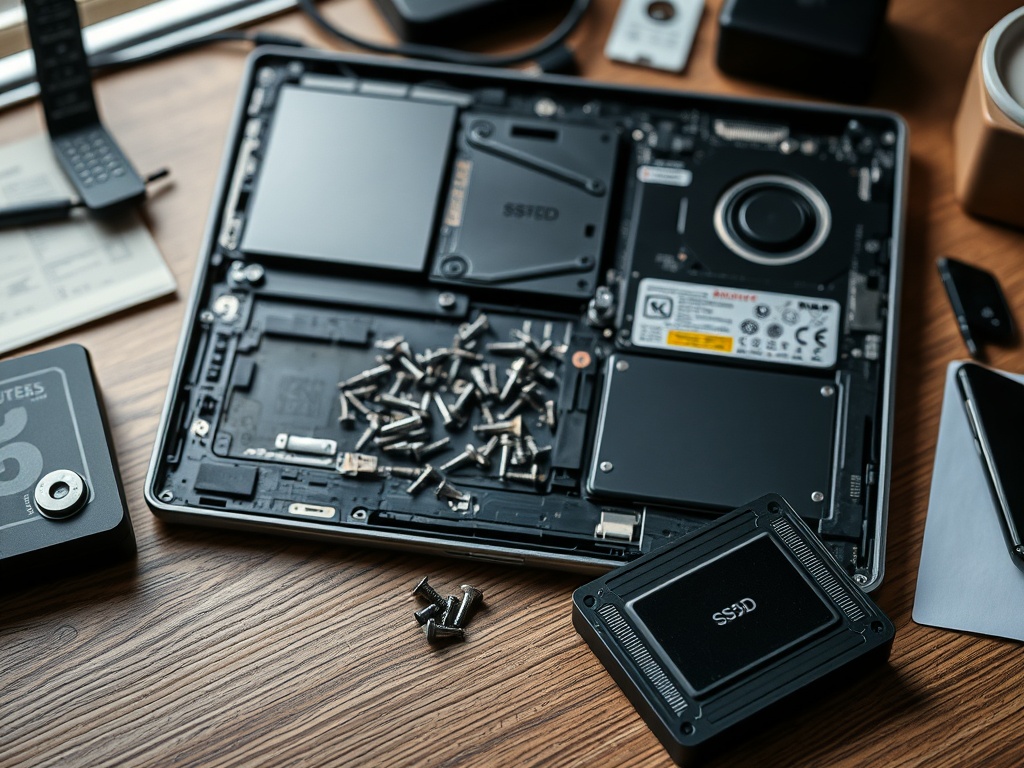
Cleanup is also the right move after unsafe downloads, suspicious pop-ups, or sudden browser redirects. Run a trusted security scan, uninstall software you do not recognize, and review recently added extensions. If the slowdown began after one installation, treat that timing as a clue. A cleanup pass should be documented: what was removed, what was disabled, and what changed afterward. That record helps you know whether the fix worked or whether the next step should be a hardware check.
When Hardware Upgrades Change the Experience
Hardware upgrades matter when the computer is regularly running out of resources during normal work. Moving from a mechanical hard drive to an SSD can transform boot and app-loading behavior on older systems. Adding memory can help when the machine slows as soon as multiple browser tabs, spreadsheets, video calls, or creative apps are open. A better graphics card matters for gaming, 3D work, video editing, or multi-monitor workloads, but it will not fix basic browser clutter or a malware infection.
The upgrade should match the workload. A student writing papers and browsing the web may need clean startup settings and enough storage, not a new desktop tower. A designer exporting large files may need more RAM and faster storage. A small office PC that cannot run supported operating system updates may need replacement rather than piecemeal upgrades. Before opening the case, check whether the device can actually accept the part, whether the warranty is affected, and whether the cost approaches the price of a newer machine.
Cleanup and Upgrade Choices Compared
Use the comparison below as a practical filter before spending money or reinstalling the operating system. The best answer is not always the most technical one; it is the option that fixes the bottleneck with the least disruption.
| Situation | Software cleanup is usually better | Hardware upgrade is usually better |
|---|---|---|
| Slow after login | Disable startup apps, remove unused sync tools, scan for malware | Add RAM only if memory is consistently maxed out |
| Apps open slowly | Clear clutter, update the app, check disk space | Move to SSD if using an old hard drive |
| Gaming or editing stutter | Update software and drivers from trusted sources | Upgrade GPU, RAM, or storage when workload demands it |
| Near-full drive | Remove files, use cloud/offline archive carefully | Install larger SSD if space fills again quickly |
| Unsupported old PC | Clean up only as a temporary fix | Replace or upgrade if OS and apps no longer support it |
A Budget-Based Decision Framework
If the budget is tight, start with no-cost actions: backup important files, update the operating system, review startup apps, remove unused programs, and run a security scan. If the device improves, stop there and create a monthly maintenance habit. If the same symptom returns quickly, look for a structural limit such as too little memory or too little drive space.
If you are already comparing parts, read a basic laptop buying mistake checklist or a new Mac setup guide before replacing the machine. These adjacent guides help clarify whether the problem is repairable, upgradeable, or a sign that your needs have changed. A home office that added video calls, cloud storage, and browser-based dashboards may simply have outgrown a budget machine from several years ago.
Match the Fix to the Bottleneck
Choose cleanup when the problem is recent, inconsistent, or tied to startup behavior, browser activity, unwanted apps, or storage clutter. Choose hardware upgrades when the system is stable and clean but still cannot keep up with the work you actually do. Choose replacement when the device cannot run supported software, cannot accept useful parts, or would cost too much to improve.
The neutral next step is simple: record the symptom, try the least risky cleanup step, measure the result, and only then price the hardware option. That keeps the decision grounded in the computer’s actual behavior instead of guesswork.